From Casual to Curated: Mastering Midjourney with SREF Code Magic

From Casual to Curated: Mastering Midjourney with SREF Code Magic

Unlocking SREF Magic: Stack, Tweak, and Go RAW with Midjourney

You’ve tossed a random SREF code into your Midjourney prompt and maybe a masterpiece emerged—or maybe it’s one of those “Bot, you do whatever you want” days.

Let’s stop guessing and start dialing in deliberate, snazzy results. Here’s how:


1. Layering SREF Codes = Style Fusion on Steroids

An SREF code is your prompt’s secret style injector—like turning your visual output from black and white TV into 4K Technicolor.

Want to blend styles? Just stack them:

… --sref 445837760 3700097971

Mixing two or three codes creates a hybrid aesthetic. Pro tip? That’s your visual gumbo; balance those flavors like a maître d’. 


2. Control the Flavor with Weights (Intensity Dial)

Need one style louder, the other a subtle whisper? Add :: and a weight number:

--sref 123456::2 987654::1

Want something gentle? Try weight under 1 like 0.5. Or go full blast—any positive number works. Medium


3. The Real Volume Knob: --sw (Style Weight)

Think of the --sw parameter as your volume slider for style. Range: 0 to 1000 (default = 100).

  • Crank it: style dominates
  • Lower it: prompt nuances shine through

Word on the digital street? Sweet spot hover between 65–175, but hey, feel free to jam. Midjourney SREF+5midlibrary.io+5Midjourney+5Medium+1


4. RAW Mode: Peel Off the AI Polish

Midjourney’s Standard Mode auto-glams your image. RAW Mode? It’s like “let me see the engine, not the paint job.”

Use --raw after your prompt—or toggle it in settings—to cut the autopilot and get more prompt-direct results. It’s control, pure and unfiltered. Reddit+3Midjourney+3YouTube+3

Midjourney veterans say:

“Raw mode looks like what version 5 was… but a little better. Opinionated 5.1 prettified things more.”


Your Cheat Sheet: From Prompt to Pro

Feature How to Use What It Does
Stack SREFs --sref 111 222 Mix styles like a creative DJ
Weighted SREFs --sref 111::2 222::1 Prioritize style influence like a slider
Style Weight --sw 150 Turn the volume of the style up or down
RAW Mode Add --raw or toggle in settings Strip the extra polish, get raw output

TL;DR

You’re now an SREF maestro. Stack them, weight them, mix in style weight, and flip to RAW to unchain Midjourney from its usual polish.

Get ready to experiment for at least three hours—because you’re not just generating images; you’re crafting art with control. And yes, it’s addictive (but worth every pixel).

Now go forth, and don’t let Midjourney run the show—you’re the one calling the shots.

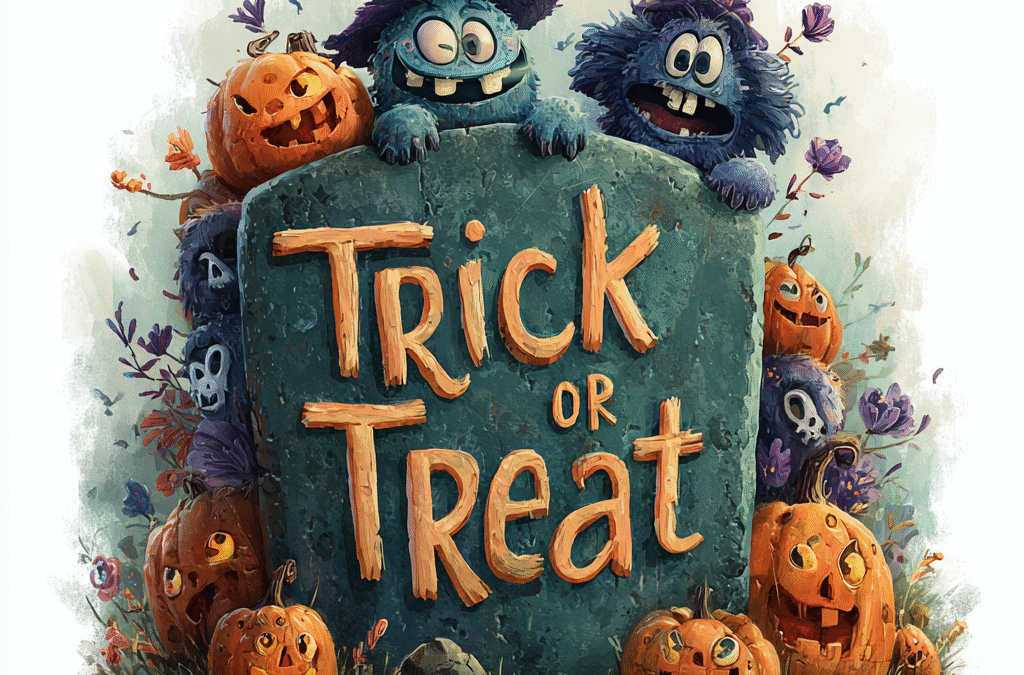
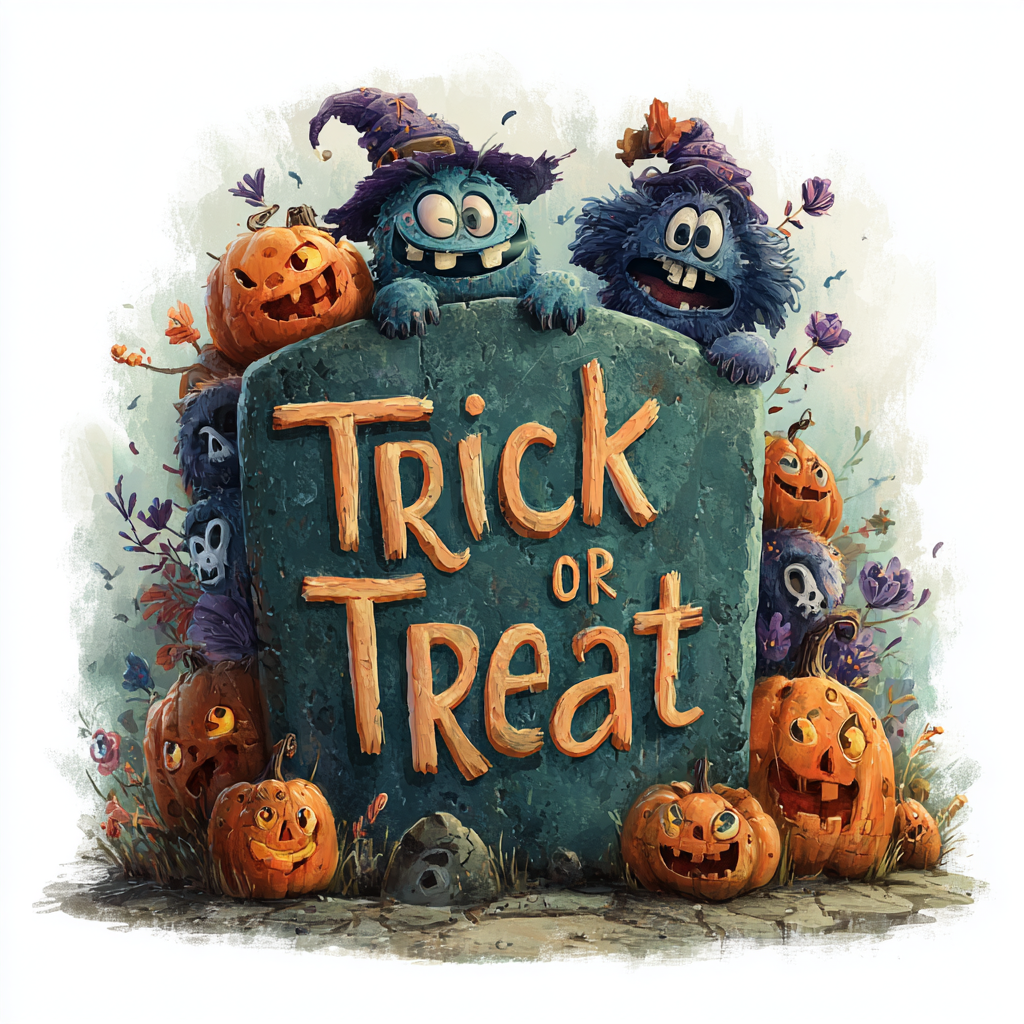
Using this Midjourney prompt:
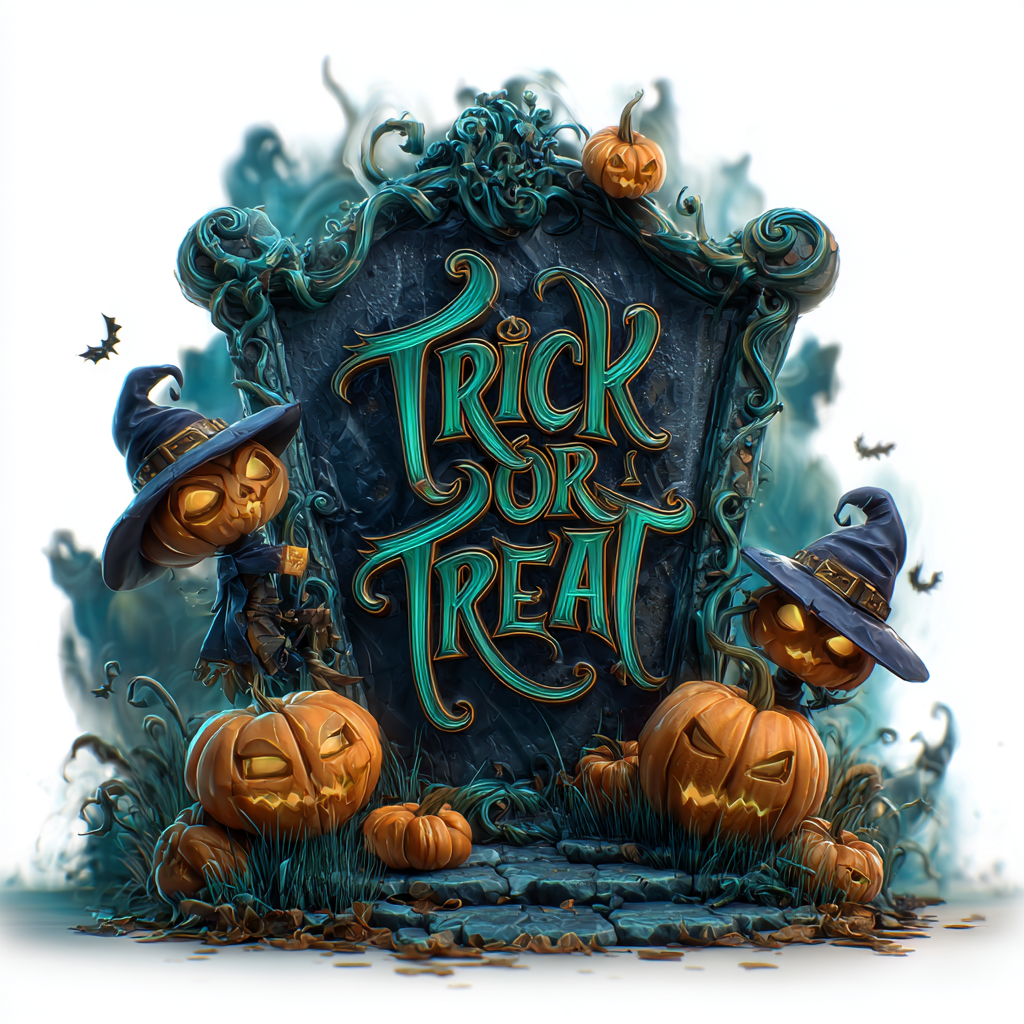
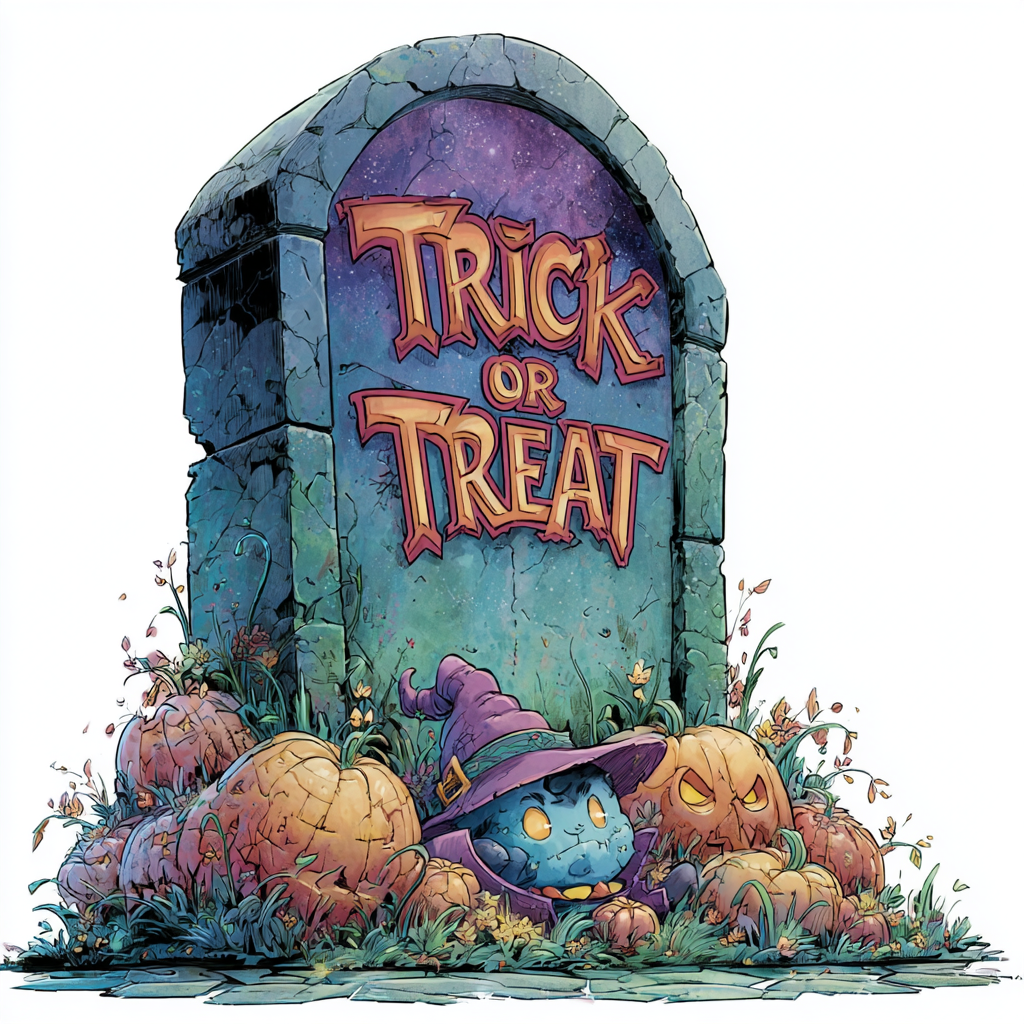
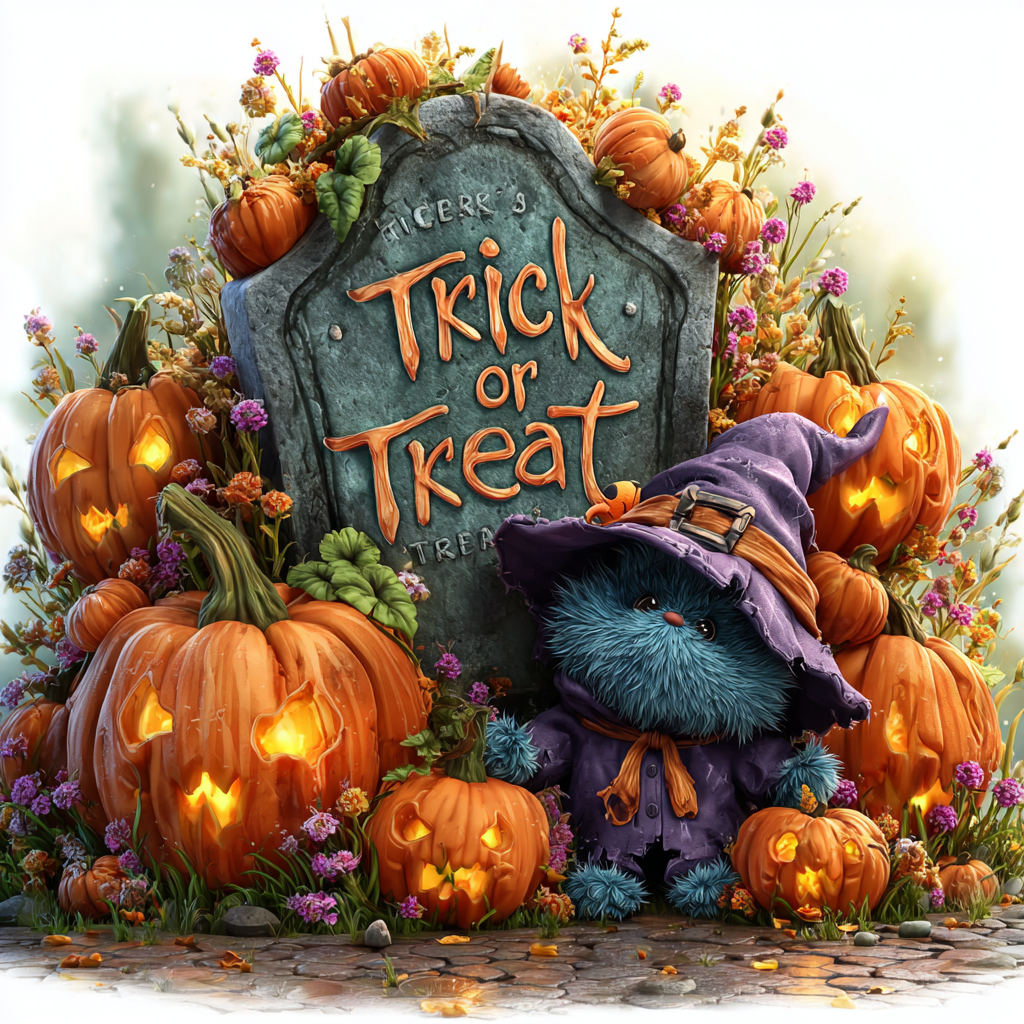
 halloween-decorated tombstone with text “trick or treat”, in purple and green colors, in a cartoon style vector illustration on a white background. a cartoon character in a witch hat surrounded by pumpkins, isolated on a white background. halloween concept design element for t-shirt prints, posters, banners, greeting cards, and more. detailed, hyper-realistic, cartoon style, with a transparent png background and white space around the edges.

Midjourney Omni Reference

Midjourney Omni Reference

Introduction

Midjourney’s Omni‑Reference (triggered via --oref) is one of its most compelling features yet. Think of it as a universal image researcher: you supply one picture—maybe a character, an object, or a creature—and Midjourney faithfully incorporates that visual into your new composition. Whether you want that face, that jacket, or even that spaceship, Omni‑Reference makes it happen. YouTube+9Midjourney+9Midjourney SREF+9Midjourney+1


What Is Omni-Reference?

Launched in V7, Omni‑Reference replaces the older character-only references of V6. It’s far more flexible—it can embed characters, objects, vehicles, or non-human creatures into your creations. Medium+5Midjourney+5Midjourney SREF+5
It isn’t compatible with inpainting, outpainting, Draft or Fast modes, and every Omni‑Reference image costs roughly double the GPU time compared to standard renders Medium+7Midjourney+7Midjourney SREF+7.


How to Use Omni-Reference

On Web UI

Switch your model to V7 in Settings.

  1. Click the image icon in the Imagine bar.
  2. Upload a reference image and drag it into the Omni‑Reference bin.
  3. Adjust the strength via the slider or manually add --ow <value> in your prompt (range: 1–1000, default 100) Midjourney+4Midjourney+4Midjourney SREF+4Midjourney SREF+2Midjourney+2.

On Discord

Add --oref <image_url> to your prompt and optionally include --ow <value> to control reference intensity Medium+6Midjourney+6Midjourney SREF+6.


What the Numbers Mean: Omni-Weight (--ow) Guide

Omni-Weight Value Effect on Result Use Case
1–25 Very light influence; mostly follows text style Drastic style transformations like photo→anime
50–100 (default) Balanced fidelity and creativity Everyday uses where some reference is desired
200–400 Strong reference adherence Maintain key features like face or clothing
500–1000 Near-exact replication Professional contexts needing high accuracy
PiAPI+8Midjourney SREF+8Midjourney+8

When combining with high stylize (--stylize) or experimental (--exp) values, you may need to raise the omni‑weight accordingly to preserve reference integrity Midjourney+1.


Best Practices

  • Pair with strong text prompts: Describe scene elements your reference doesn’t cover to complete the narrative or setting Titan XT+3Midjourney+3Midjourney SREF+3.

  • Style reinforcement: If you want a different style, name it at both the start and end of your prompt. Lower --ow helps when style needs to diverge more from the reference Midjourney+1.

  • Multi‑subject use: Some artists pack multiple characters or objects into one reference image and mention them explicitly in the prompt to get them all into the output Medium+7Midjourney+7Midjourney SREF+7.

  • Moderation awareness: Omni‑Reference may trigger stricter filters. Failed jobs don’t cost credits; only successful renders consume GPU time Midjourney+8Midjourney+8Midjourney SREF+8.

  • Experiment intelligently: Start with moderate weights (like 100), then tweak based on results. Avoid extreme values unless necessary.

Introduction

Midjourney’s Omni‑Reference (triggered via --oref) is one of its most compelling features yet. Think of it as a universal image researcher: you supply one picture—maybe a character, an object, or a creature—and Midjourney faithfully incorporates that visual into your new composition. Whether you want that face, that jacket, or even that spaceship, Omni‑Reference makes it happen. YouTube+9Midjourney+9Midjourney SREF+9Midjourney+1


What Is Omni-Reference?

Launched in V7, Omni‑Reference replaces the older character-only references of V6. It’s far more flexible—it can embed characters, objects, vehicles, or non-human creatures into your creations. Medium+5Midjourney+5Midjourney SREF+5
It isn’t compatible with inpainting, outpainting, Draft or Fast modes, and every Omni‑Reference image costs roughly double the GPU time compared to standard renders Medium+7Midjourney+7Midjourney SREF+7.


How to Use Omni-Reference

On Web UI

Switch your model to V7 in Settings.

  1. Click the image icon in the Imagine bar.
  2. Upload a reference image and drag it into the Omni‑Reference bin.
  3. Adjust the strength via the slider or manually add --ow <value> in your prompt (range: 1–1000, default 100) Midjourney+4Midjourney+4Midjourney SREF+4Midjourney SREF+2Midjourney+2.

On Discord

Add --oref <image_url> to your prompt and optionally include --ow <value> to control reference intensity Medium+6Midjourney+6Midjourney SREF+6.


What the Numbers Mean: Omni-Weight (--ow) Guide

Omni-Weight Value Effect on Result Use Case
1–25 Very light influence; mostly follows text style Drastic style transformations like photo→anime
50–100 (default) Balanced fidelity and creativity Everyday uses where some reference is desired
200–400 Strong reference adherence Maintain key features like face or clothing
500–1000 Near-exact replication Professional contexts needing high accuracy
PiAPI+8Midjourney SREF+8Midjourney+8

When combining with high stylize (--stylize) or experimental (--exp) values, you may need to raise the omni‑weight accordingly to preserve reference integrity Midjourney+1.


Best Practices

  • Pair with strong text prompts: Describe scene elements your reference doesn’t cover to complete the narrative or setting Titan XT+3Midjourney+3Midjourney SREF+3.

  • Style reinforcement: If you want a different style, name it at both the start and end of your prompt. Lower --ow helps when style needs to diverge more from the reference Midjourney+1.

  • Multi‑subject use: Some artists pack multiple characters or objects into one reference image and mention them explicitly in the prompt to get them all into the output Medium+7Midjourney+7Midjourney SREF+7.

  • Moderation awareness: Omni‑Reference may trigger stricter filters. Failed jobs don’t cost credits; only successful renders consume GPU time Midjourney+8Midjourney+8Midjourney SREF+8.

  • Experiment intelligently: Start with moderate weights (like 100), then tweak based on results. Avoid extreme values unless necessary.